 Tasodrums
What do you need for your own drum video?
In this post, we'll go through the following:
- Filming location
- A phone or camera + a stand to keep it upright
- If you have lights, use them. More on this later in the post.
- Mics, stands and a mixer (read the detailed instructions in part 1)
- A computer and recording software, options in part 1
- Filming process recap
- Video editing software and post-editing
Next, we'll go through these one step at a time, so you'll learn about the different stages and what to keep in mind.
The recording process step by step
1. Filming location
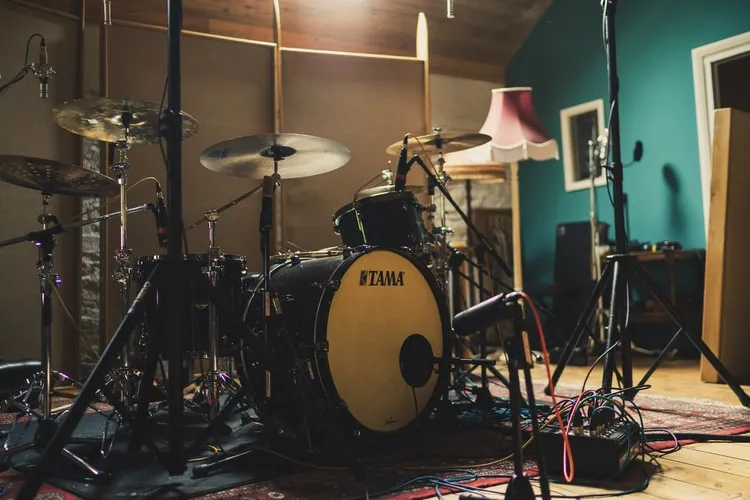
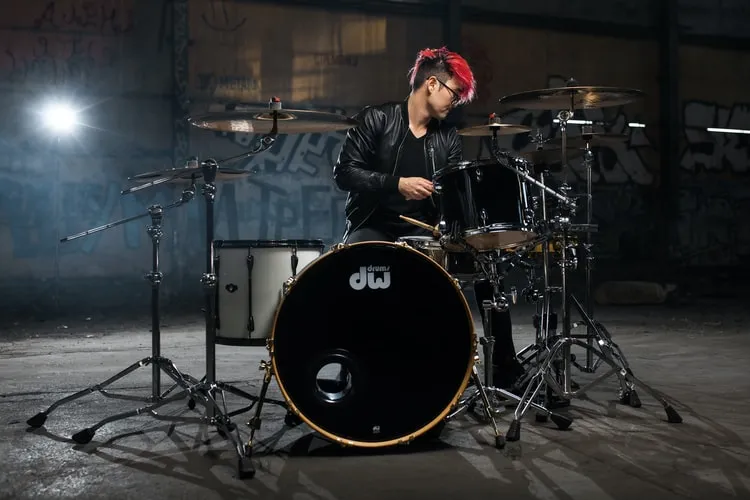
Whether you're filming at home or in your rehearsal space, start the video process by getting the location ready.
Look at your surroundings: if you can, clear junk and extra stuff out of the camera's view so it's easy for the viewer to focus on the drum kit and you.
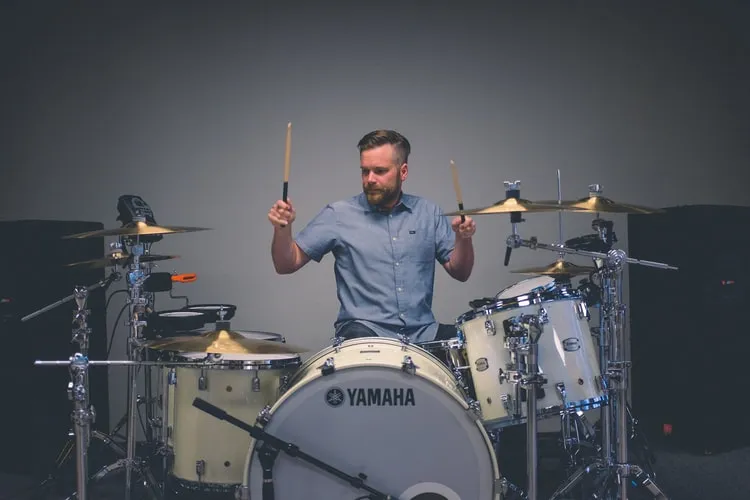
Which filming location looks better?
2. Camera
Put your phone or camera on a stand where you want it. You'll want either a tripod or a GorillaPod as a stand. Check Google and buy from Amazon if you're on a budget.
Whether you film from the front, the left, the right or above is up to you. Look at other drum covers for reference and try out different options. Same thing if you're filming with several cameras.
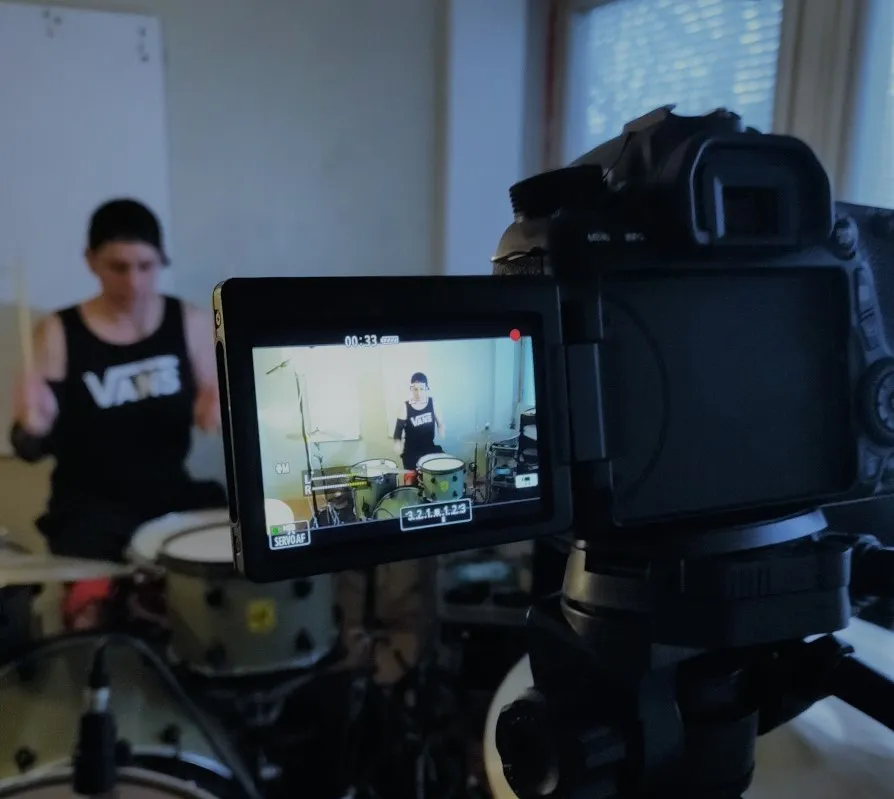
The camera does matter, but start with what you have. Your phone, or a DSLR if you have one. Right now I have a Canon EOS 70D, which works really well for this.
3. Lighting
Cameras, and phones especially, work poorly in the dark or in low light. Besides the room lights, you can also use LED lights, desk lamps, floor lamps or, of course, lights made for video and photography.
When you point the lights at yourself (ideally from above at an angle) and at the drum kit, your videos instantly look better.
Lighting is important but often underrated when filming video. Learn about it on YouTube with searches like "video lighting". Don't just watch drummers, watch videographers.
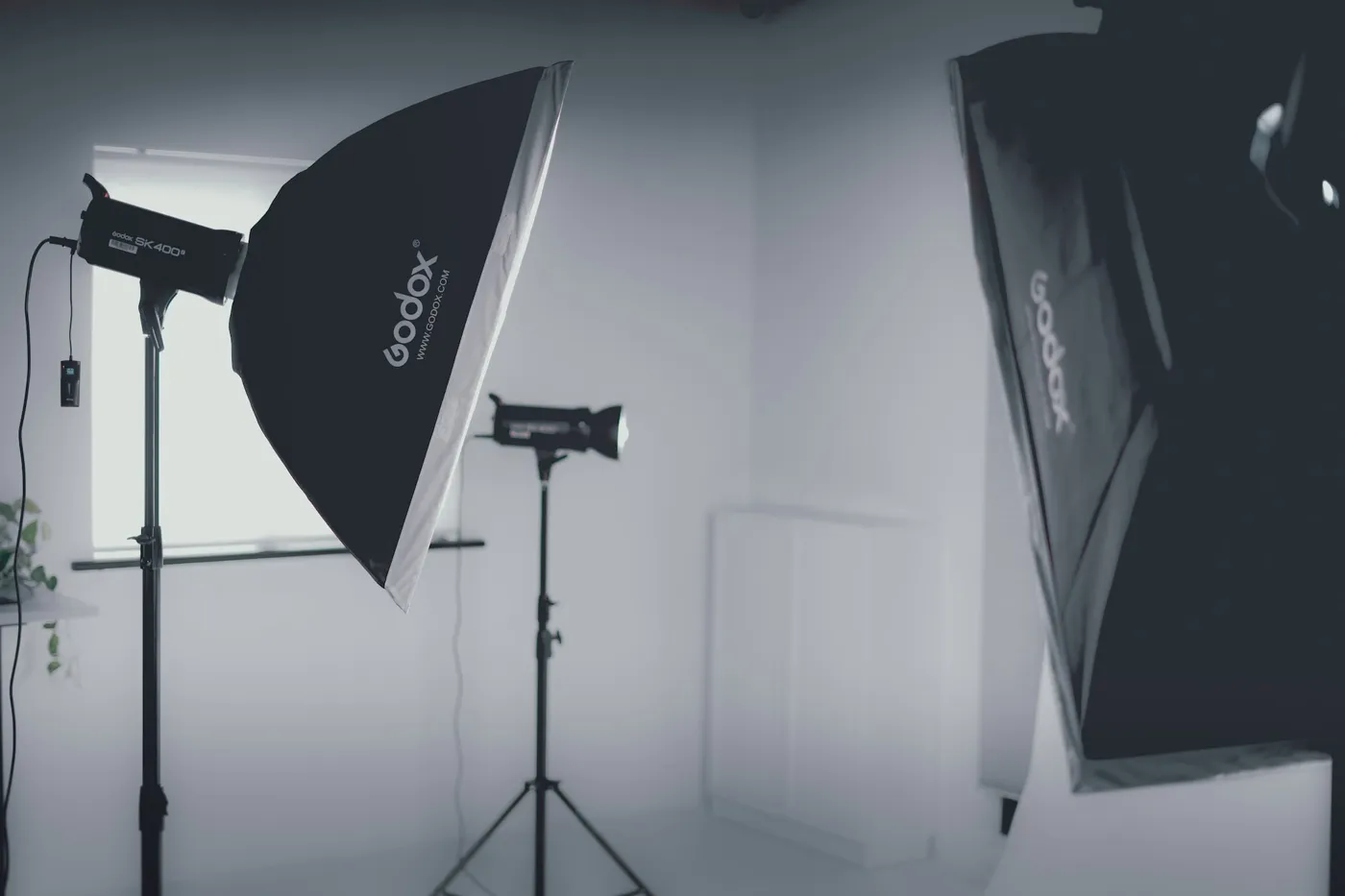
Still, don't let lighting stop you from starting to make videos. Start with what you have and buy new gear when you can.
4. Mics, mixer
Now it's time to set up the mics and test that the mixer works. Read more about the gear in part 1 and about the process in part 2.
5. Computer and DAW
Start your computer, install / open your recording software (Digital Audio Workstation = DAW) and make sure it works and records every mic.
Setting it up isn't always that easy, so check the videos below for instructions. I use Reaper for recording. Reaper is free for 60 days, and after that you're supposed to buy a $60 license. If you use some other DAW, you'll find instructions on YouTube. There's more about DAWs in part 1 of this blog series.
6. Filming process recap
Now we're ready to start filming. A quick recap:
- The filming location is tidied up.
- The camera is in place, it has enough battery and there's space on the memory card.
- You're using lighting, if possible.
- The mics are connected, and the mixer, computer and DAW are on and recording successfully.
At this point you have two options:
If you're playing a drum cover, you can add the song as a new track in Reaper below the mics, so the music and your playing are automatically in sync. It works like this: you download the song you're going to play along to, add it as a track in your DAW and hit record, and your playing is automatically recorded in the same spot as the song.
The other option is to listen to the song while you play, for example from your phone with headphones, and add + sync the backing music in post-editing, which we'll talk about in a moment.
TIP: Make a folder on your computer ahead of time where all your recordings go. Make a folder called "recording projects" and inside it folders like "Song xx 12.5.20". Once the files start piling up, you'll lose everything unless you're organized about this. Believe me, been there, done that.
7. Start recording
Hit record on your phone / camera.
Hit record in your DAW. Heh, sounds simple, but sometimes you forget to turn one of them on..
Run to the kit, ready to play!
TIP: If you put the music in your DAW as a track ahead of time, leave a little space at the beginning before the music starts so you can calmly sit down at the kit and get ready to play.
TIP: SAY OUT LOUD "Song xx xx, take 1". If you film the song many times because you mess up (as we all do), you'll know right away in post-editing which camera footage goes with which recording clip. This is especially useful when you're filming many different videos in one go.
TIP: Make syncing audio and video easier in post-editing by hitting the snare three times hard when you start recording, both the first time and between takes. That way it's easier to match the audio to the video in post-editing by following the waveforms.
8. When the recording is done
1. Drum sounds
You've now successfully recorded the song. Next comes post-editing.
Start with the drum sound. Mix the drums in your DAW until you get the result you want. Again, I won't go into mixing in more detail in this post, because the topic is so big it needs a post of its own. You only learn mixing by doing it. Learn the basics of mixing a drum kit online and boldly start experimenting and learning. It's not the destination, it's the journey.
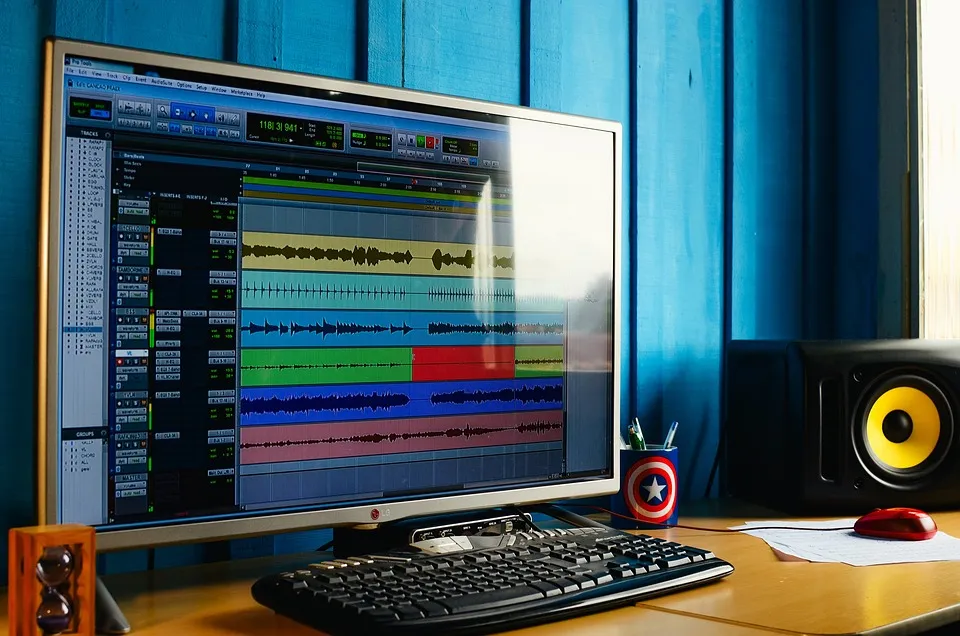
When you're happy with your drum sound, render the file as an mp3. Rendering means converting the file into another format and saving it on your computer. You'll find rendering somewhere in your DAW's menus, it's a basic feature.
I save the rendered file in a OneDrive cloud folder, because I have two computers, and one of them stays at the rehearsal space. Both computers are connected to the same OneDrive, so the same file shows up on both. Another option is an external hard drive, where you can save all your files and easily bring them home.
Pack up the camera and whatever else you need and head home. :) Next comes post-editing. Note: If you're already at home / you edit the video at the rehearsal space too, grab a cup of coffee and move on to the next step.
2. Adding video and audio to the editing software
In post-editing you want to bring together the video, the audio and the music, and finish the video by adding things like titles and effects, doing color correction and so on. Video editing is a skill of its own, so I won't open it up more in this post either, just the basics you need.
There are lots of video editing programs. The most popular are the paid Premiere Pro and Final Cut Pro, plus the free DaVinci Resolve, which is what I use.
I recommend Resolve (because it's free and good). The only problem with video editing programs is that they're really heavy, and not every laptop can necessarily handle editing very well. For a basic cover video, a regular computer should get you started, but if you notice editing getting choppy, it's probably because your computer doesn't have enough capacity. I recommend at least 256 GB of SSD storage and 16 GB of RAM. DaVinci especially likes to use quite a lot of memory.
At this stage you have three things to do:
- Install a video editing program, watch a few tutorials and learn how to use it.
- Move the video(s) you want from the camera's memory card to your computer and into the video editing program.
- Move the MP3 drum recording you rendered earlier into the same video editing program. If you only recorded the drums and not the backing music, you'll also need the backing music as an audio file.
NOTE: Remember copyright when you use music that isn't royalty-free. This means, for example, that the ad revenue from a YouTube video using copyrighted music usually goes to the rights holder (or the video can be blocked), so you can't make money from it that way yourself.
9. Syncing & editing video and audio
Now you can add the camera video and your own playing to the video editing program's timeline and line the two up with each other.
TIP: Make sure the video and audio are in sync by moving the audio track if needed before you delete the camera audio. Then delete (or mute) the audio from the camera video, so you're left with just the camera's picture and the mic audio. If you read this post carefully, you'll remember the three snare hits at the start of the recording that I mentioned earlier. You'll easily find them in the waveforms of both audio tracks.
Last, add the backing music underneath and sync it with the other audio. (Watch the video below, from 2:15) Make sure the balance is right, so the music doesn't bury the drums and the drums don't bury the music.
Your video should now basically be done. You can add text at the beginning and end, adjust the video's colors and so on, as much as your time and skills allow at that point.
Save the video as an MP4, 1080p is plenty. Post it on social media and wait for new followers!
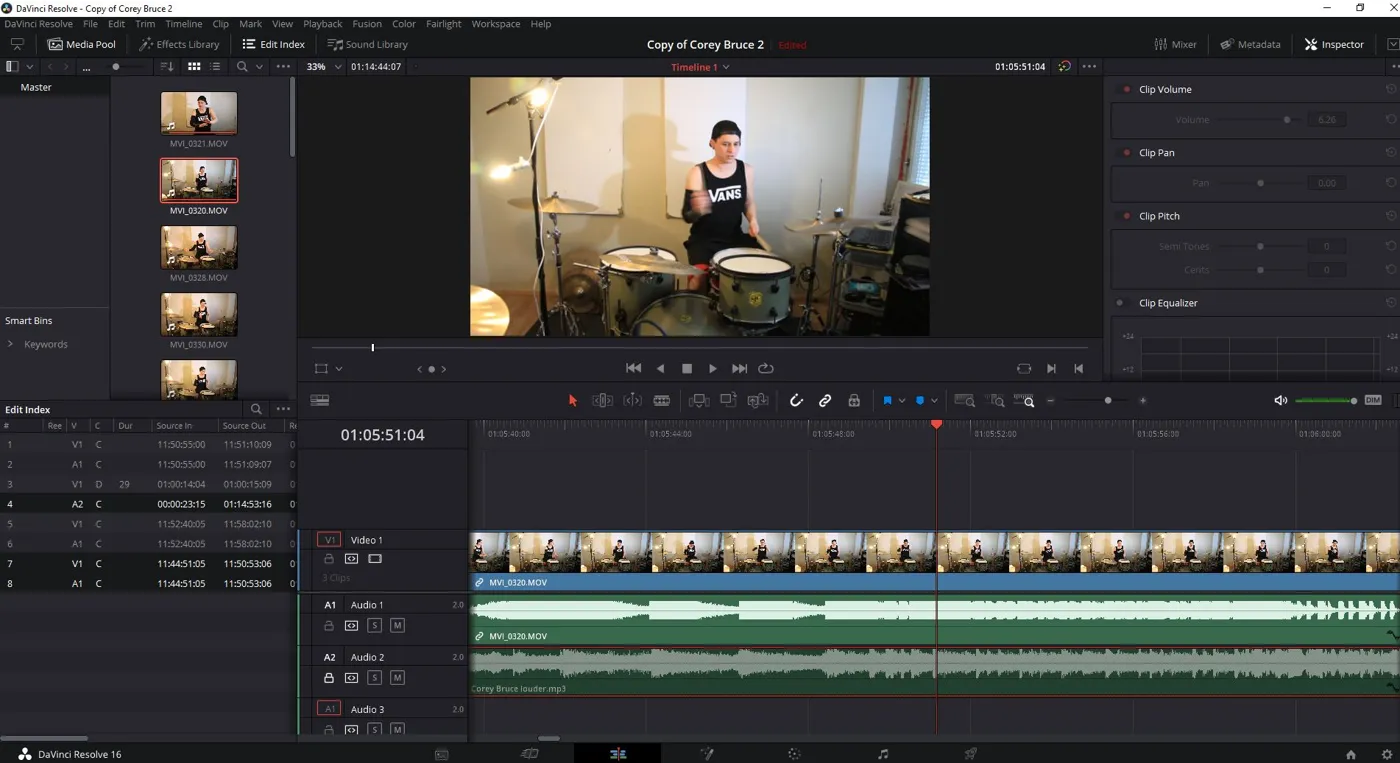
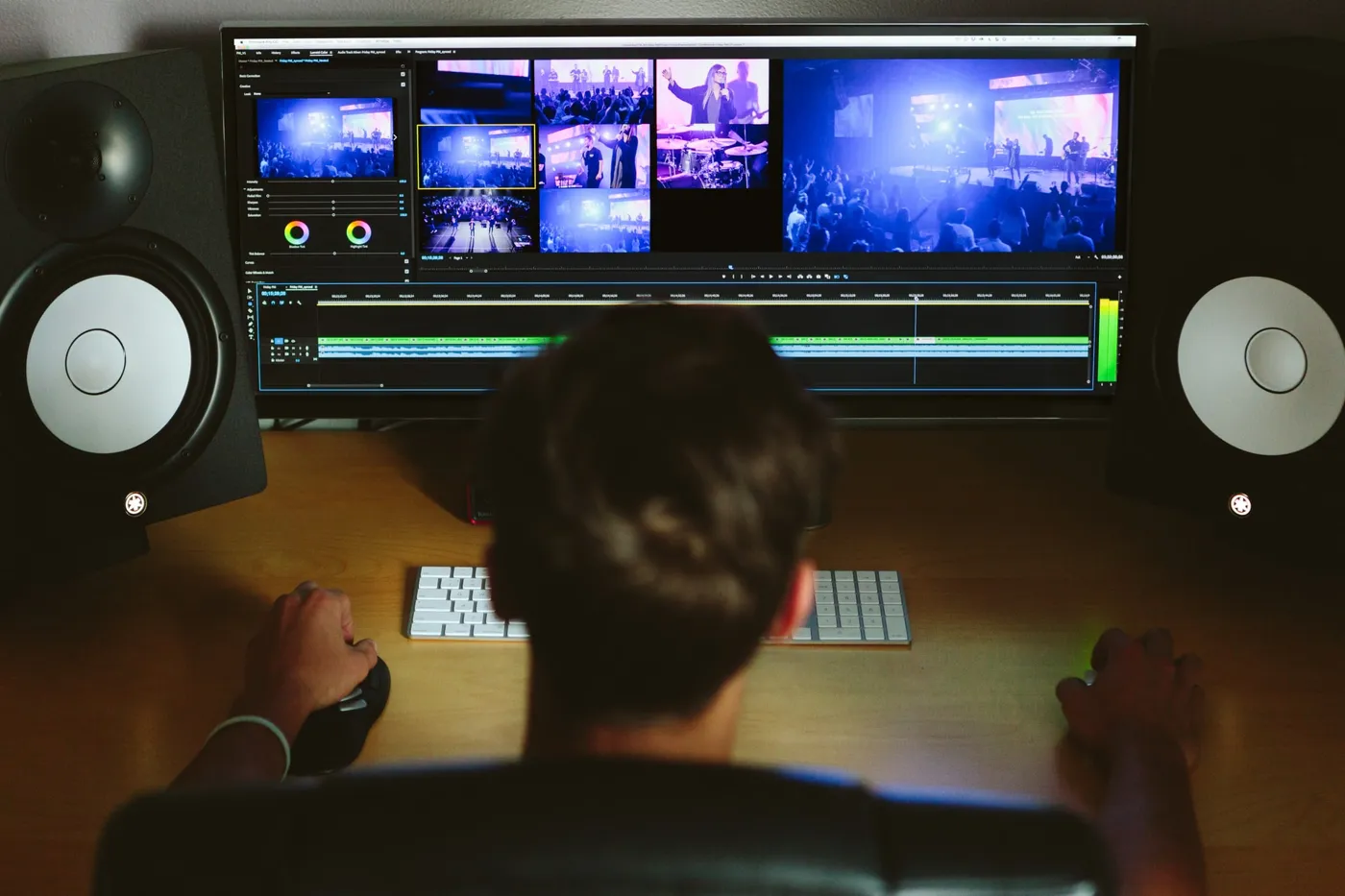
Look at the editing software view: the video at the top, the mic audio track below it, and the backing music audio track below that. In the editing software you can easily see where the peaks of the song and the hits are and line the audio up.
I hope this post helped you get started planning and filming your own videos. The most important thing is to make the process as easy and simple as possible, so your time doesn't go into fiddling around but into recording efficiently. Practice makes perfect here too.